
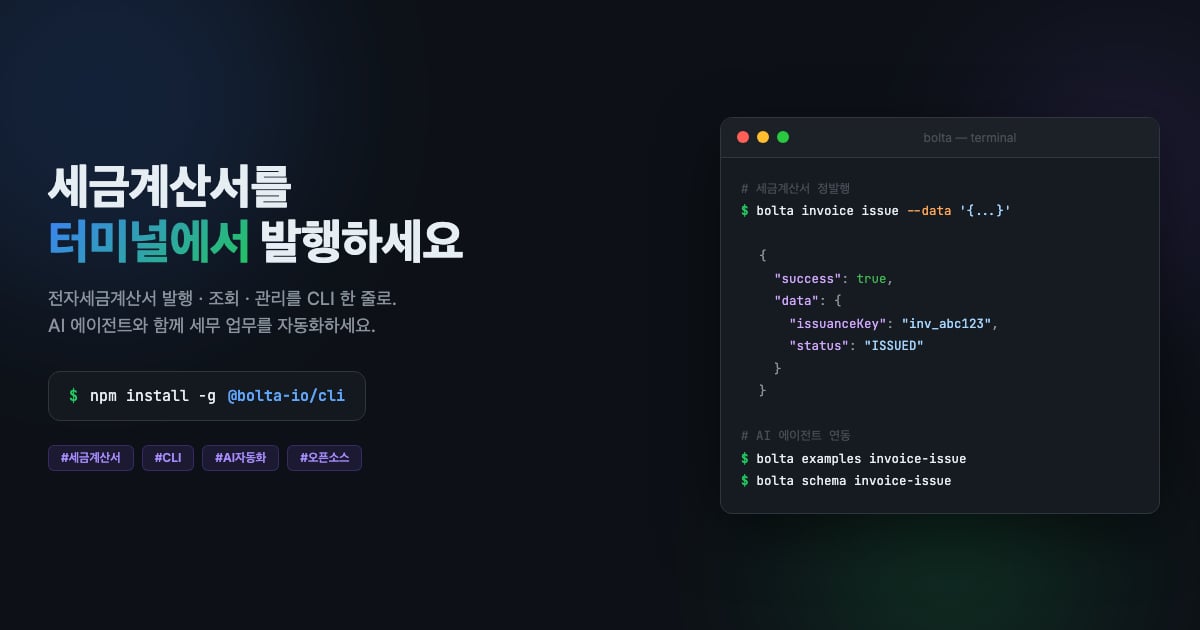
Bolta CLI는 터미널에서 세금계산서를 발행하고 관리할 수 있는 커맨드라인 도구입니다.
AI 에이전트(Claude Code 등)가 세금계산서 업무를 자동화할 때 사용할 수 있도록 설계되었습니다.
npm install -g @bolta-io/cli
Node.js 20.0.0 이상이 필요합니다.
인증 설정
Bolta API를 사용하려면 API 키가 필요합니다. 환경변수 또는 CLI 명령으로 설정합니다.
# 방법 1: 환경변수 (권장)
export BOLTA_API_KEY="test_your_key"
export BOLTA_CUSTOMER_KEY="customer_abc123"
# 방법 2: CLI 명령 (영구 저장 - ~/.bolta/config.json)
bolta config set api-key test_your_key
bolta config set customer-key customer_abc123
# 연결 테스트
bolta config test
인증 해결 우선순위: CLI 플래그(--api-key) > 환경변수(BOLTA_API_KEY) > 설정 파일(~/.bolta/config.json)
API 키 발급은 개발자센터 API 키 관리 페이지를 참고하세요.
커맨드
고객 관리
# 고객 생성
bolta customer create --data '{
"identificationNumber": "1234567890",
"organizationName": "주식회사 테스트",
"representativeName": "홍길동"
}'
# 고객 조회
bolta customer get <customerKey>
인증서 관리
# 인증서 등록 URL 조회
bolta certificate url <customerKey>
# 인증서 등록 상태 조회
bolta certificate status <customerKey>
# 인증서 해제
bolta certificate deregister <customerKey>
세금계산서 발행/조회
# 세금계산서 정발행
bolta invoice issue --data '{
"date": "2026-03-25",
"purpose": "CLAIM",
"supplier": {
"identificationNumber": "1234567890",
"organizationName": "공급자 주식회사",
"representativeName": "김공급",
"manager": { "email": "supplier@example.com" }
},
"supplied": {
"identificationNumber": "0987654321",
"organizationName": "공급받는자 주식회사",
"representativeName": "이고객",
"managers": [{ "email": "buyer@example.com" }]
},
"items": [{
"date": "2026-03-25",
"name": "소프트웨어 개발 용역",
"supplyCost": 1000000,
"tax": 100000
}]
}'
# 세금계산서 역발행 요청
bolta invoice issue-request --data '{...}'
# 세금계산서 조회
bolta invoice get <issuanceKey>
# Client-Reference-Id로 상태 조회
bolta invoice status --reference-id <id>
수정발행
# 수정발행: 계약 해제
bolta invoice amend termination <issuanceKey> --date 2026-03-25
# 수정발행: 공급가액 변동
bolta invoice amend change-supply-cost <issuanceKey> --data '{
"date": "2026-03-25",
"items": [{
"date": "2026-03-25",
"name": "가격 조정",
"supplyCost": -200000,
"tax": -20000
}]
}'
bolta config set <key> <value> # api-key, customer-key, base-url
bolta config show # 현재 설정 확인
bolta config test # API 연결 테스트
입력 방법
데이터가 필요한 커맨드는 3가지 입력 방식을 지원합니다.
# 인라인 JSON (AI 에이전트 권장)
bolta invoice issue --data '{"date":"2026-03-25", ...}'
# 파일 참조
bolta invoice issue --file invoice.json
# 파이프 입력
cat invoice.json | bolta invoice issue --stdin
글로벌 옵션
| 옵션 | 설명 |
|---|
--api-key <key> | API 키 오버라이드 |
--customer-key <key> | Customer Key 오버라이드 |
--verbose | 상세 로그 출력 (stderr) |
--dry-run | API 호출 없이 요청 데이터만 출력 |
출력 형식
모든 응답은 JSON으로 stdout에 출력됩니다.
// 성공 (exit code 0)
{ "success": true, "data": { ... } }
// 실패 (exit code 1)
{ "success": false, "error": { "code": "...", "message": "...", "suggestion": "..." } }
에러 코드
| 코드 | 원인 | 해결 |
|---|
AUTH_ERROR | API 키 없음/잘못됨 | bolta config set api-key <key> |
VALIDATION_ERROR | 입력 데이터 오류 | bolta schema <command>로 스키마 확인 |
INPUT_ERROR | 입력 방식 오류 | --data, --file, --stdin 중 하나 사용 |
HTTP_400 | 잘못된 요청 | error.message 확인 |
HTTP_404 | 리소스 없음 | issuanceKey/customerKey 확인 |
HTTP_429 | 요청 제한 초과 | 자동 재시도 (최대 3회) |
NETWORK_ERROR | 네트워크 오류 | 인터넷 연결 확인 |
AI 가이드
이 CLI는 AI 에이전트가 쉽게 사용할 수 있도록 다음 가이드를 제공합니다.
| 가이드 | 용도 | 접근 방법 |
|---|
CLAUDE.md | Claude Code가 자동으로 읽는 프로젝트 가이드 | 프로젝트 루트에 위치 |
llms.txt | 범용 AI 에이전트 참조 문서 | 프로젝트 루트에 위치 |
bolta examples | 바로 쓸 수 있는 샘플 JSON | bolta examples [command] |
bolta schema | JSON 입력 스키마 | bolta schema [command] |
--help | 모든 커맨드에 예시 포함 | bolta <command> --help |
# 사용 가능한 예제 목록
bolta examples
# 정발행 샘플 JSON 조회
bolta examples invoice-issue
# 정발행 입력 스키마 조회
bolta schema invoice-issue