> ## Documentation Index
> Fetch the complete documentation index at: https://docs.bolta.io/llms.txt
> Use this file to discover all available pages before exploring further.

# 세금계산서 이메일 재전송

> 발행된 세금계산서를 이메일로 재전송 할 수 있습니다.

# 1. 이메일 재전송

\[매출 세금계산서] - \[발행완료] - \[세금계산서 선택] - \[이메일 재전송]을 클릭하여 이미 발행된 세금계산서를 재발송 할 수 있어요.
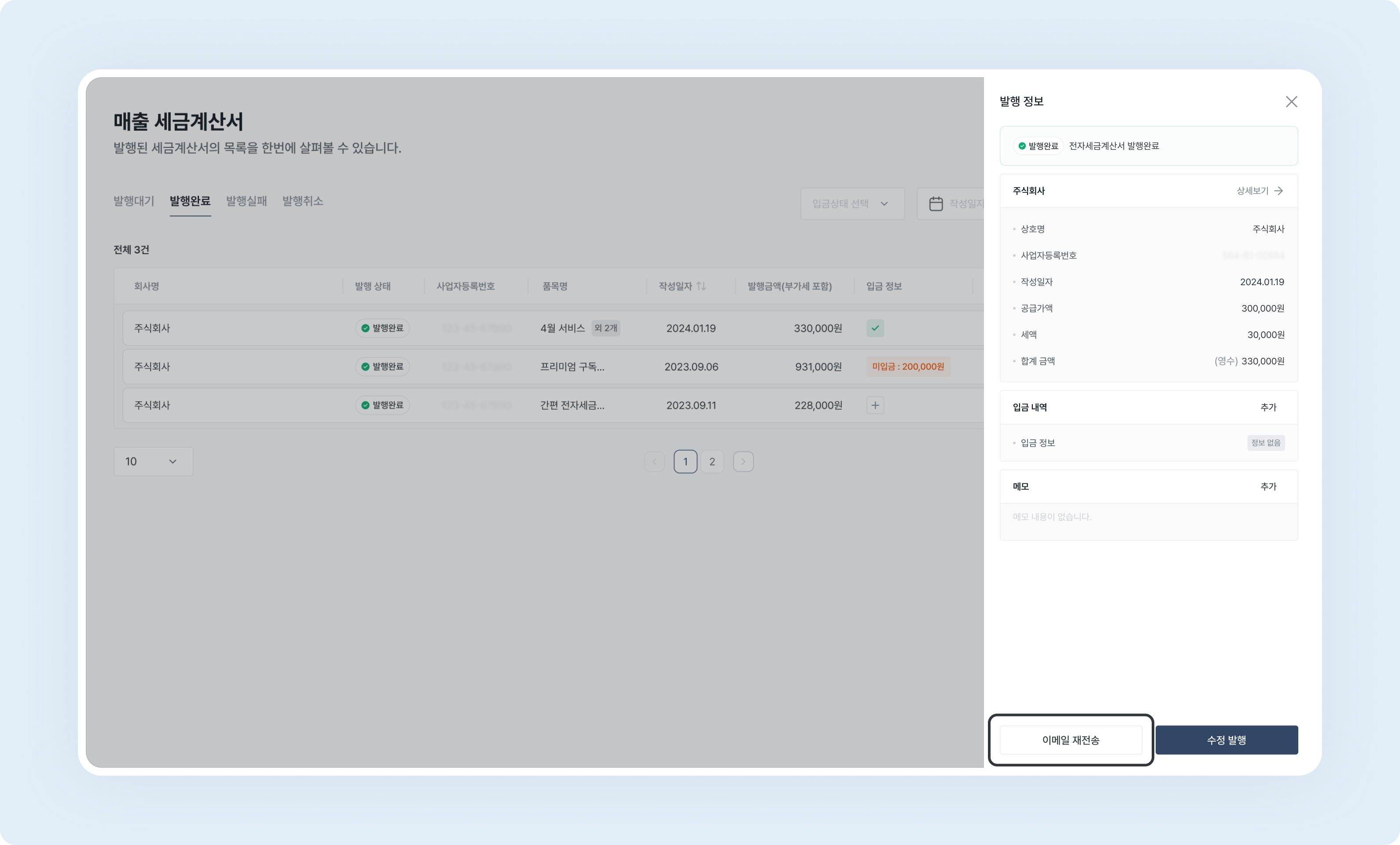
<img src="https://mintcdn.com/bolta/kE8MNnpIvAO4CLQ5/images/docs/invoice-sales-management-email-resend__resend-email.png?fit=max&auto=format&n=kE8MNnpIvAO4CLQ5&q=85&s=597c1acd87e9f2c291ba83889bb344d1" alt="invoice sales management email resend resend email" width="3180" height="1920" data-path="images/docs/invoice-sales-management-email-resend__resend-email.png" />

# 2. 이메일 주소 입력

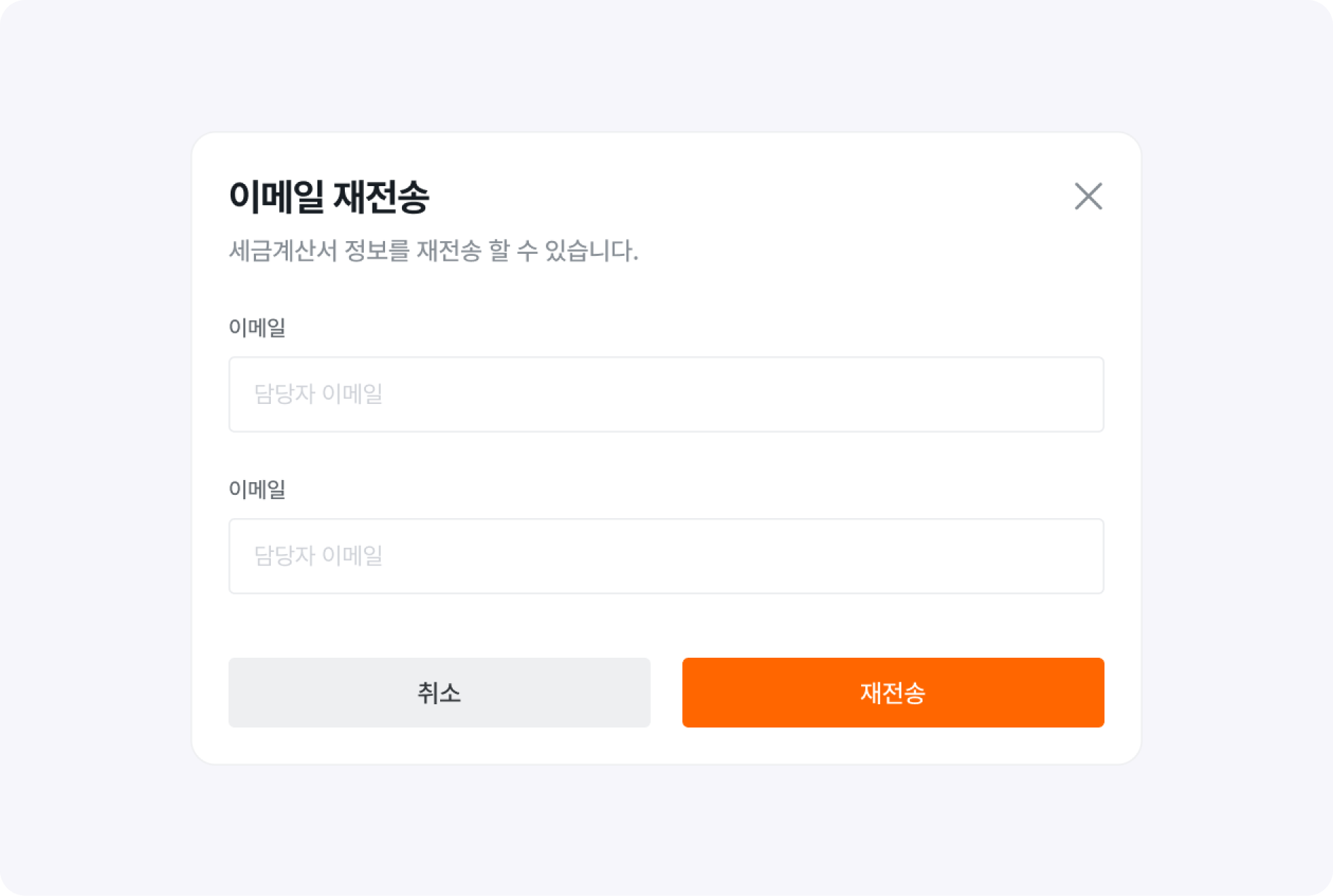
전자세금계산서를 다시 보내고자 하는 이메일 주소를 입력한 후, 재전송 버튼을 클릭해 주세요.

> 세금계산서 입력된 이메일 주소를 바꾸고자 하신다면, \[기재사항 착오정정] 사유로 수정발행으로 바꿔주셔야 합니다.
<img src="https://mintcdn.com/bolta/kE8MNnpIvAO4CLQ5/images/docs/invoice-sales-management-email-resend__enter-email.png?fit=max&auto=format&n=kE8MNnpIvAO4CLQ5&q=85&s=2ae760e46dc99468b1ccd352cccac41c" alt="invoice sales management email resend enter email" width="1890" height="1271" data-path="images/docs/invoice-sales-management-email-resend__enter-email.png" />
