> ## Documentation Index
> Fetch the complete documentation index at: https://docs.bolta.io/llms.txt
> Use this file to discover all available pages before exploring further.
# CLI
> Bolta CLI를 이용한 터미널 기반 세금계산서 발행/조회/관리를 안내합니다.
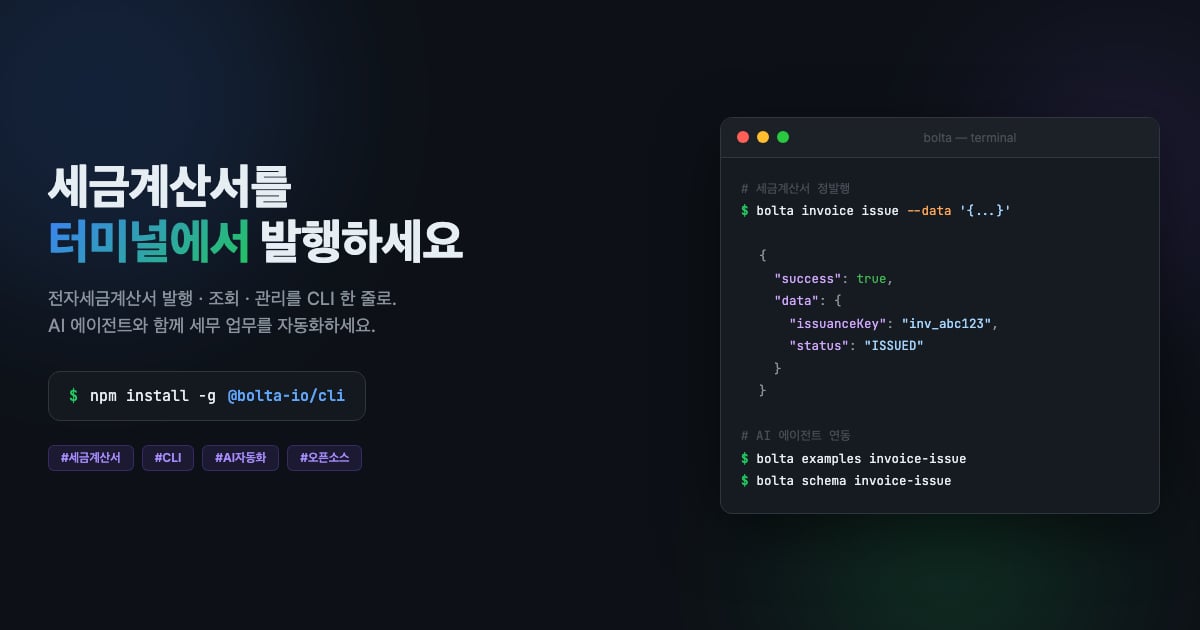 Bolta CLI는 터미널에서 세금계산서를 발행하고 관리할 수 있는 커맨드라인 도구입니다.
AI 에이전트(Claude Code 등)가 세금계산서 업무를 자동화할 때 사용할 수 있도록 설계되었습니다.
## 설치
```bash theme={"dark"}
npm install -g @bolta-io/cli
```
Node.js 20.0.0 이상이 필요합니다.
## 인증 설정
Bolta API를 사용하려면 API 키가 필요합니다. 환경변수 또는 CLI 명령으로 설정합니다.
```bash theme={"dark"}
# 방법 1: 환경변수 (권장)
export BOLTA_API_KEY="test_your_key"
export BOLTA_SUPPLIER_KEY="SupplierKey_abc123"
# 방법 2: CLI 명령 (영구 저장 - ~/.bolta/config.json)
bolta config set api-key test_your_key
bolta config set supplier-key SupplierKey_abc123
# 연결 테스트
bolta config test
```
인증 해결 우선순위: CLI 플래그(`--api-key`) > 환경변수(`BOLTA_API_KEY`) > 설정 파일(`~/.bolta/config.json`)
API 키 발급은 [개발자센터 API 키 관리](/docs/developer-center/api-key) 페이지를 참고하세요.
## 커맨드
### 공급자 관리
`supplier` 커맨드는 세금계산서를 발행하는 공급자(발행자)를 등록·조회합니다.
```bash theme={"dark"}
# 공급자 등록
bolta supplier create --data '{
"identificationNumber": "1234567890",
"organizationName": "주식회사 테스트",
"representativeName": "홍길동"
}'
# 공급자 조회
bolta supplier get
```
### 인증서 관리
```bash theme={"dark"}
# 인증서 등록 URL 조회
bolta certificate url
# 인증서 등록 상태 조회
bolta certificate status
# 인증서 해제
bolta certificate deregister
```
### 세금계산서 발행/조회
```bash theme={"dark"}
# 세금계산서 정발행
bolta invoice issue --data '{
"date": "2026-03-25",
"purpose": "CLAIM",
"supplier": {
"identificationNumber": "1234567890",
"organizationName": "공급자 주식회사",
"representativeName": "김공급",
"manager": { "email": "supplier@example.com" }
},
"supplied": {
"identificationNumber": "0987654321",
"organizationName": "공급받는자 주식회사",
"representativeName": "이고객",
"managers": [{ "email": "buyer@example.com" }]
},
"items": [{
"date": "2026-03-25",
"name": "소프트웨어 개발 용역",
"supplyCost": 1000000,
"tax": 100000
}]
}'
# 외국인등록번호 공급받는자 정발행 샘플 조회
# CLI는 식별번호의 하이픈과 공백을 제거해 처리합니다.
# 최상위 description은 빼거나 null로 두고, 여권번호는 사용할 수 없습니다.
bolta examples invoice-issue-foreign-supplied
# 세금계산서 역발행 요청 (공급받는자는 사업자등록번호만 허용)
bolta invoice issue-request --data '{...}'
# 세금계산서 조회
bolta invoice get
# Client-Reference-Id로 상태 조회
bolta invoice status --reference-id
```
### 수정발행
```bash theme={"dark"}
# 수정발행: 계약 해제
bolta invoice amend termination --date 2026-03-25
# 수정발행: 공급가액 변동
bolta invoice amend change-supply-cost --data '{
"date": "2026-03-25",
"items": [{
"date": "2026-03-25",
"name": "가격 조정",
"supplyCost": -200000,
"tax": -20000
}]
}'
# 수정발행: 착오에 의한 이중발급
bolta invoice amend double-issuance
```
CLI는 정발행, 역발행 요청, 공급가액 변동 수정발행 입력을 API와 같은 규칙으로 먼저 검증합니다. 국세청 XML 전송 제한을 포함한 최신 스키마는 `bolta schema invoice-issue`로 확인할 수 있습니다.
### 설정
```bash theme={"dark"}
bolta config set # api-key, supplier-key, base-url
bolta config show # 현재 설정 확인
bolta config test # API 연결 테스트
```
## 입력 방법
데이터가 필요한 커맨드는 3가지 입력 방식을 지원합니다.
```bash theme={"dark"}
# 인라인 JSON (AI 에이전트 권장)
bolta invoice issue --data '{"date":"2026-03-25", ...}'
# 파일 참조
bolta invoice issue --file invoice.json
# 파이프 입력
cat invoice.json | bolta invoice issue --stdin
```
## 글로벌 옵션
| 옵션 | 설명 |
| ---------------------- | -------------------- |
| `--api-key ` | API 키 오버라이드 |
| `--supplier-key ` | Supplier Key 오버라이드 |
| `--verbose` | 상세 로그 출력 (stderr) |
| `--dry-run` | API 호출 없이 요청 데이터만 출력 |
## 출력 형식
모든 응답은 JSON으로 stdout에 출력됩니다.
```json theme={"dark"}
// 성공 (exit code 0)
{ "success": true, "data": { ... } }
// 실패 (exit code 1)
{ "success": false, "error": { "code": "...", "message": "...", "suggestion": "..." } }
```
## 에러 코드
| 코드 | 원인 | 해결 |
| ------------------ | ------------ | ------------------------------------- |
| `AUTH_ERROR` | API 키 없음/잘못됨 | `bolta config set api-key ` |
| `VALIDATION_ERROR` | 입력 데이터 오류 | `bolta schema `로 스키마 확인 |
| `INPUT_ERROR` | 입력 방식 오류 | `--data`, `--file`, `--stdin` 중 하나 사용 |
| `HTTP_400` | 잘못된 요청 | error.message 확인 |
| `HTTP_404` | 리소스 없음 | issuanceKey/supplierKey 확인 |
| `HTTP_429` | 요청 제한 초과 | 자동 재시도 (최대 3회) |
| `NETWORK_ERROR` | 네트워크 오류 | 인터넷 연결 확인 |
## AI 가이드
이 CLI는 AI 에이전트가 쉽게 사용할 수 있도록 다음 가이드를 제공합니다.
| 가이드 | 용도 | 접근 방법 |
| ---------------- | ----------------------------- | -------------------------- |
| `CLAUDE.md` | Claude Code가 자동으로 읽는 프로젝트 가이드 | 프로젝트 루트에 위치 |
| `llms.txt` | 범용 AI 에이전트 참조 문서 | 프로젝트 루트에 위치 |
| `bolta examples` | 바로 쓸 수 있는 샘플 JSON | `bolta examples [command]` |
| `bolta schema` | JSON 입력 스키마 | `bolta schema [command]` |
| `--help` | 모든 커맨드에 예시 포함 | `bolta --help` |
```bash theme={"dark"}
# 사용 가능한 예제 목록
bolta examples
# 정발행 샘플 JSON 조회
bolta examples invoice-issue
# 외국인등록번호 공급받는자 정발행 샘플 JSON 조회
bolta examples invoice-issue-foreign-supplied
# 정발행 입력 스키마 조회
bolta schema invoice-issue
```
npm 패키지 페이지
Bolta CLI는 터미널에서 세금계산서를 발행하고 관리할 수 있는 커맨드라인 도구입니다.
AI 에이전트(Claude Code 등)가 세금계산서 업무를 자동화할 때 사용할 수 있도록 설계되었습니다.
## 설치
```bash theme={"dark"}
npm install -g @bolta-io/cli
```
Node.js 20.0.0 이상이 필요합니다.
## 인증 설정
Bolta API를 사용하려면 API 키가 필요합니다. 환경변수 또는 CLI 명령으로 설정합니다.
```bash theme={"dark"}
# 방법 1: 환경변수 (권장)
export BOLTA_API_KEY="test_your_key"
export BOLTA_SUPPLIER_KEY="SupplierKey_abc123"
# 방법 2: CLI 명령 (영구 저장 - ~/.bolta/config.json)
bolta config set api-key test_your_key
bolta config set supplier-key SupplierKey_abc123
# 연결 테스트
bolta config test
```
인증 해결 우선순위: CLI 플래그(`--api-key`) > 환경변수(`BOLTA_API_KEY`) > 설정 파일(`~/.bolta/config.json`)
API 키 발급은 [개발자센터 API 키 관리](/docs/developer-center/api-key) 페이지를 참고하세요.
## 커맨드
### 공급자 관리
`supplier` 커맨드는 세금계산서를 발행하는 공급자(발행자)를 등록·조회합니다.
```bash theme={"dark"}
# 공급자 등록
bolta supplier create --data '{
"identificationNumber": "1234567890",
"organizationName": "주식회사 테스트",
"representativeName": "홍길동"
}'
# 공급자 조회
bolta supplier get
```
### 인증서 관리
```bash theme={"dark"}
# 인증서 등록 URL 조회
bolta certificate url
# 인증서 등록 상태 조회
bolta certificate status
# 인증서 해제
bolta certificate deregister
```
### 세금계산서 발행/조회
```bash theme={"dark"}
# 세금계산서 정발행
bolta invoice issue --data '{
"date": "2026-03-25",
"purpose": "CLAIM",
"supplier": {
"identificationNumber": "1234567890",
"organizationName": "공급자 주식회사",
"representativeName": "김공급",
"manager": { "email": "supplier@example.com" }
},
"supplied": {
"identificationNumber": "0987654321",
"organizationName": "공급받는자 주식회사",
"representativeName": "이고객",
"managers": [{ "email": "buyer@example.com" }]
},
"items": [{
"date": "2026-03-25",
"name": "소프트웨어 개발 용역",
"supplyCost": 1000000,
"tax": 100000
}]
}'
# 외국인등록번호 공급받는자 정발행 샘플 조회
# CLI는 식별번호의 하이픈과 공백을 제거해 처리합니다.
# 최상위 description은 빼거나 null로 두고, 여권번호는 사용할 수 없습니다.
bolta examples invoice-issue-foreign-supplied
# 세금계산서 역발행 요청 (공급받는자는 사업자등록번호만 허용)
bolta invoice issue-request --data '{...}'
# 세금계산서 조회
bolta invoice get
# Client-Reference-Id로 상태 조회
bolta invoice status --reference-id
```
### 수정발행
```bash theme={"dark"}
# 수정발행: 계약 해제
bolta invoice amend termination --date 2026-03-25
# 수정발행: 공급가액 변동
bolta invoice amend change-supply-cost --data '{
"date": "2026-03-25",
"items": [{
"date": "2026-03-25",
"name": "가격 조정",
"supplyCost": -200000,
"tax": -20000
}]
}'
# 수정발행: 착오에 의한 이중발급
bolta invoice amend double-issuance
```
CLI는 정발행, 역발행 요청, 공급가액 변동 수정발행 입력을 API와 같은 규칙으로 먼저 검증합니다. 국세청 XML 전송 제한을 포함한 최신 스키마는 `bolta schema invoice-issue`로 확인할 수 있습니다.
### 설정
```bash theme={"dark"}
bolta config set # api-key, supplier-key, base-url
bolta config show # 현재 설정 확인
bolta config test # API 연결 테스트
```
## 입력 방법
데이터가 필요한 커맨드는 3가지 입력 방식을 지원합니다.
```bash theme={"dark"}
# 인라인 JSON (AI 에이전트 권장)
bolta invoice issue --data '{"date":"2026-03-25", ...}'
# 파일 참조
bolta invoice issue --file invoice.json
# 파이프 입력
cat invoice.json | bolta invoice issue --stdin
```
## 글로벌 옵션
| 옵션 | 설명 |
| ---------------------- | -------------------- |
| `--api-key ` | API 키 오버라이드 |
| `--supplier-key ` | Supplier Key 오버라이드 |
| `--verbose` | 상세 로그 출력 (stderr) |
| `--dry-run` | API 호출 없이 요청 데이터만 출력 |
## 출력 형식
모든 응답은 JSON으로 stdout에 출력됩니다.
```json theme={"dark"}
// 성공 (exit code 0)
{ "success": true, "data": { ... } }
// 실패 (exit code 1)
{ "success": false, "error": { "code": "...", "message": "...", "suggestion": "..." } }
```
## 에러 코드
| 코드 | 원인 | 해결 |
| ------------------ | ------------ | ------------------------------------- |
| `AUTH_ERROR` | API 키 없음/잘못됨 | `bolta config set api-key ` |
| `VALIDATION_ERROR` | 입력 데이터 오류 | `bolta schema `로 스키마 확인 |
| `INPUT_ERROR` | 입력 방식 오류 | `--data`, `--file`, `--stdin` 중 하나 사용 |
| `HTTP_400` | 잘못된 요청 | error.message 확인 |
| `HTTP_404` | 리소스 없음 | issuanceKey/supplierKey 확인 |
| `HTTP_429` | 요청 제한 초과 | 자동 재시도 (최대 3회) |
| `NETWORK_ERROR` | 네트워크 오류 | 인터넷 연결 확인 |
## AI 가이드
이 CLI는 AI 에이전트가 쉽게 사용할 수 있도록 다음 가이드를 제공합니다.
| 가이드 | 용도 | 접근 방법 |
| ---------------- | ----------------------------- | -------------------------- |
| `CLAUDE.md` | Claude Code가 자동으로 읽는 프로젝트 가이드 | 프로젝트 루트에 위치 |
| `llms.txt` | 범용 AI 에이전트 참조 문서 | 프로젝트 루트에 위치 |
| `bolta examples` | 바로 쓸 수 있는 샘플 JSON | `bolta examples [command]` |
| `bolta schema` | JSON 입력 스키마 | `bolta schema [command]` |
| `--help` | 모든 커맨드에 예시 포함 | `bolta --help` |
```bash theme={"dark"}
# 사용 가능한 예제 목록
bolta examples
# 정발행 샘플 JSON 조회
bolta examples invoice-issue
# 외국인등록번호 공급받는자 정발행 샘플 JSON 조회
bolta examples invoice-issue-foreign-supplied
# 정발행 입력 스키마 조회
bolta schema invoice-issue
```
npm 패키지 페이지